> For the complete documentation index, see [llms.txt](https://docs.solmatebot.com/llms.txt). Markdown versions of documentation pages are available by appending `.md` to page URLs; this page is available as [Markdown](https://docs.solmatebot.com/web-dashboard/tracker-settings.md).
# Tracker Settings
Configure how wallet tracker notifications look and behave.
The **Settings** tab on the dashboard lets you fine-tune your wallet tracker notifications and other server settings.
## Opening Settings
1. Go to [solmatebot.com/manage](https://solmatebot.com/manage)
2. Select your server
3. Click the **Settings** tab
The settings page has multiple sub-sections.
## Wallet Tracker Settings
### Ignored Tokens
Add token addresses to exclude from tracker notifications. Useful for filtering out spam tokens or tokens you don't care about.
* Enter the token contract address
* Click **Add**
* Remove tokens from the list with the **X** button
### Ignored Addresses
Add wallet addresses to exclude from notifications. Transactions involving these addresses won't trigger notifications.
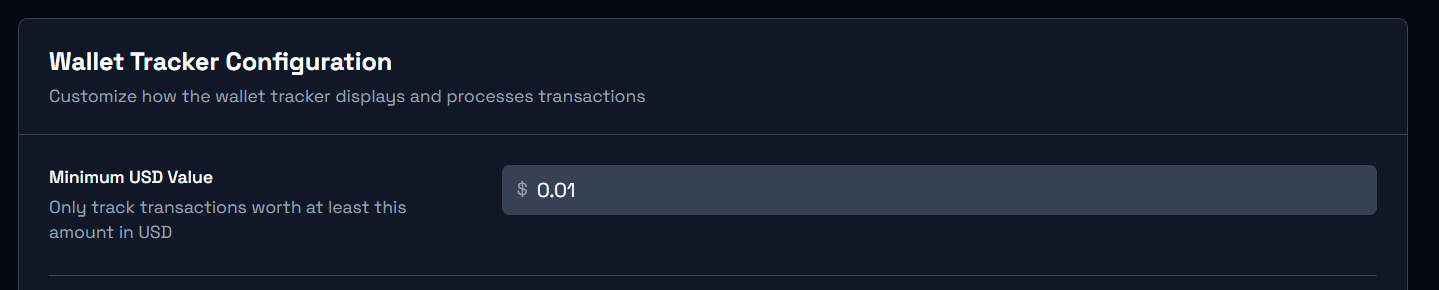
### Minimum USD Value
Set a threshold so only transactions above a certain USD value trigger notifications. This filters out dust and micro-transactions.
Filtering options for wallet trackers
### Display Toggles
| Setting | Description |
| ------------------------ | ----------------------------------------------------- |
| Show contract address | Display the token's contract address in notifications |
| Show transaction summary | Include a summary line in each notification |
| Anonymize addresses | Hide full wallet addresses |
| Show market cap | Display token market cap in swap notifications |
| Show memo field | Show transaction memo if present |
### Button Configuration
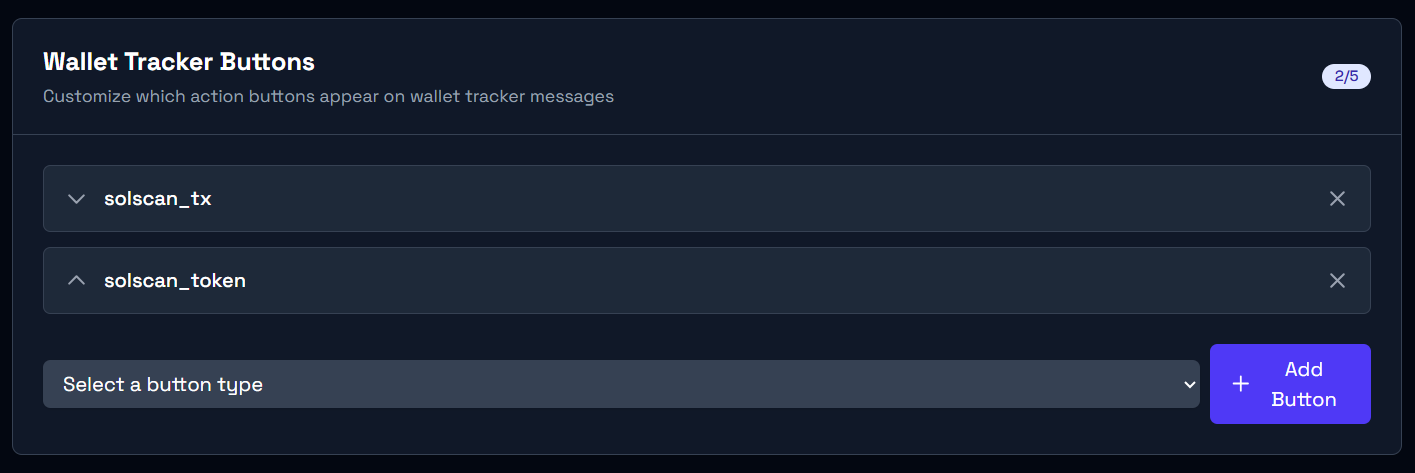
Customize which buttons appear on tracker notifications and in what order.
* **Drag and drop** buttons to reorder them
* **Remove** buttons you don't need
* Available buttons include explorers (Solscan, SolanaFM), trading bots (Trojan, Bonkbot, BullX), token viewers (Birdeye, DexScreener, Photon, GMGN, Axiom), and utilities (RugCheck, PumpFun, Jupiter)
Drag and drop to reorder notification buttons
## General Settings
* **Tips toggle** — enable or disable helpful tips in bot responses
* **Nick/ticker role settings** — configure the bot nickname price display and ticker roles
## Saving Changes
After making changes, a **Save** button will appear. Click it to apply your settings. Changes take effect immediately for new notifications.