> For the complete documentation index, see [llms.txt](https://docs.solmatebot.com/llms.txt). Markdown versions of documentation pages are available by appending `.md` to page URLs; this page is available as [Markdown](https://docs.solmatebot.com/web-dashboard/managing-trackers.md).
# Managing Trackers
Add, manage, and bulk-operate on wallet trackers from the web dashboard.
The **Trackers** tab on the dashboard provides powerful tools for managing all your wallet trackers, including bulk operations and file imports.
## Opening the Trackers Tab
1. Go to [solmatebot.com/manage](https://solmatebot.com/manage)
2. Select your server
3. Click the **Trackers** tab
The tab has three sub-sections: **Trackers**, **Labels**, and **Name Tags**.
## Adding Trackers
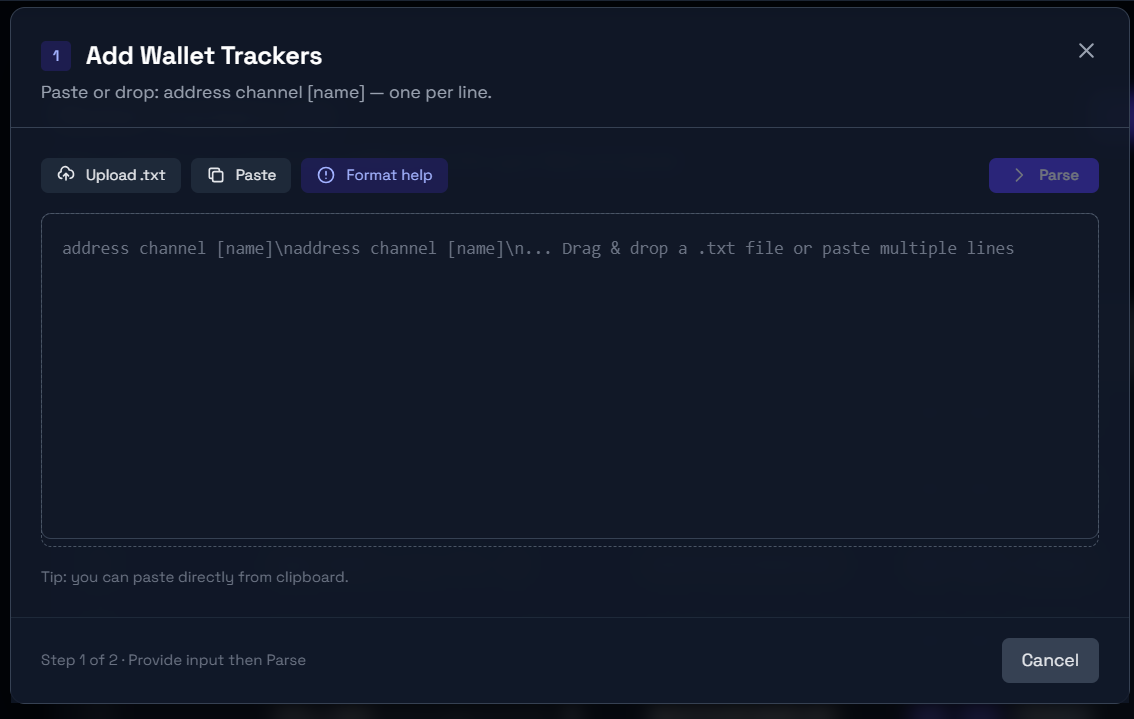
Click **Add Trackers** to open the add popup.
### Manual entry
Type or paste wallet addresses in the text area, one per line. Use this format:
```
address channel nametag
```
For example:
```
7xKXtg2CW87...9pR4 7415794142837616252 Team Wallet
9yMNzp3EQ12...4kL8 7415794142837616252 Whale 1
```
### Paste from clipboard
Click the **Paste** button to paste addresses from your clipboard.
### File import
Drag and drop a `.txt` file into the popup, or click to browse. The file should contain wallet addresses in the same format (one per line).
Adding multiple trackers at once
### Preview and submit
Before submitting, you'll see a preview table showing:
* Parsed wallet address
* Channel assignment
* Nametag
* Any errors (e.g., invalid address format)
You can edit entries inline or remove individual rows before submitting.
## Tracker List
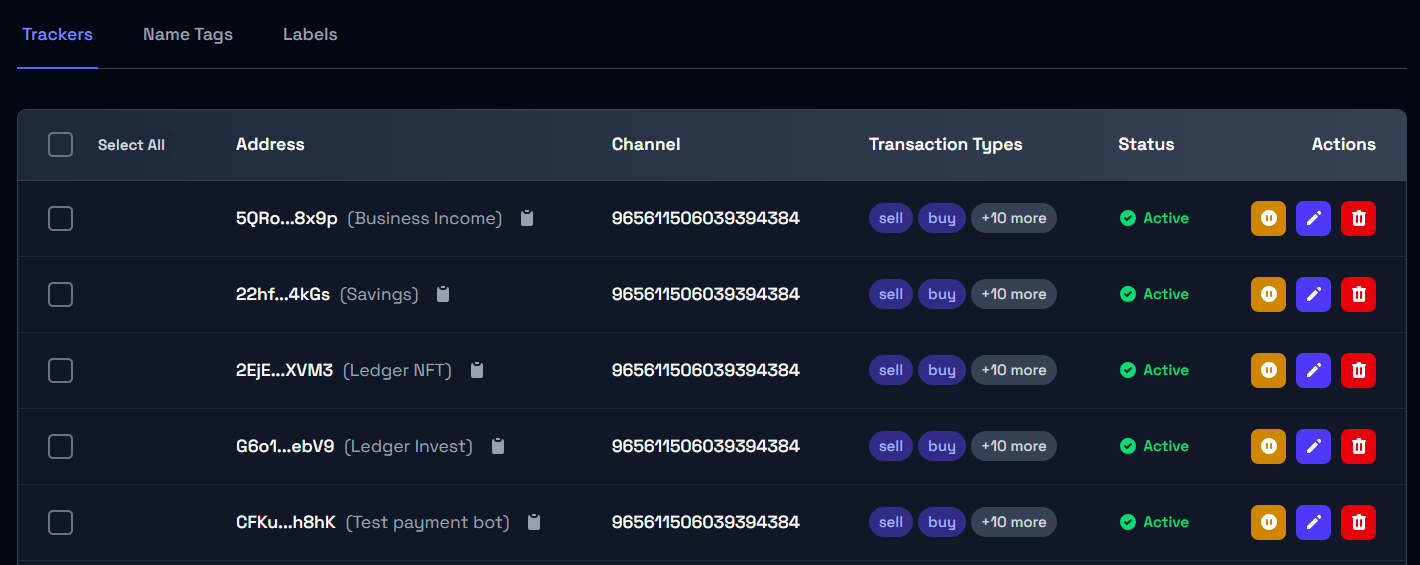
All configured trackers are shown as cards with:
* Wallet address and nametag
* Notification channel
* Status badge (active, inactive, or disabled)
* Pause/resume button
* Delete button
Tracker list on the dashboard
### Usage indicator
A progress bar at the top shows how many trackers you're using out of your plan's limit.
## Bulk Operations
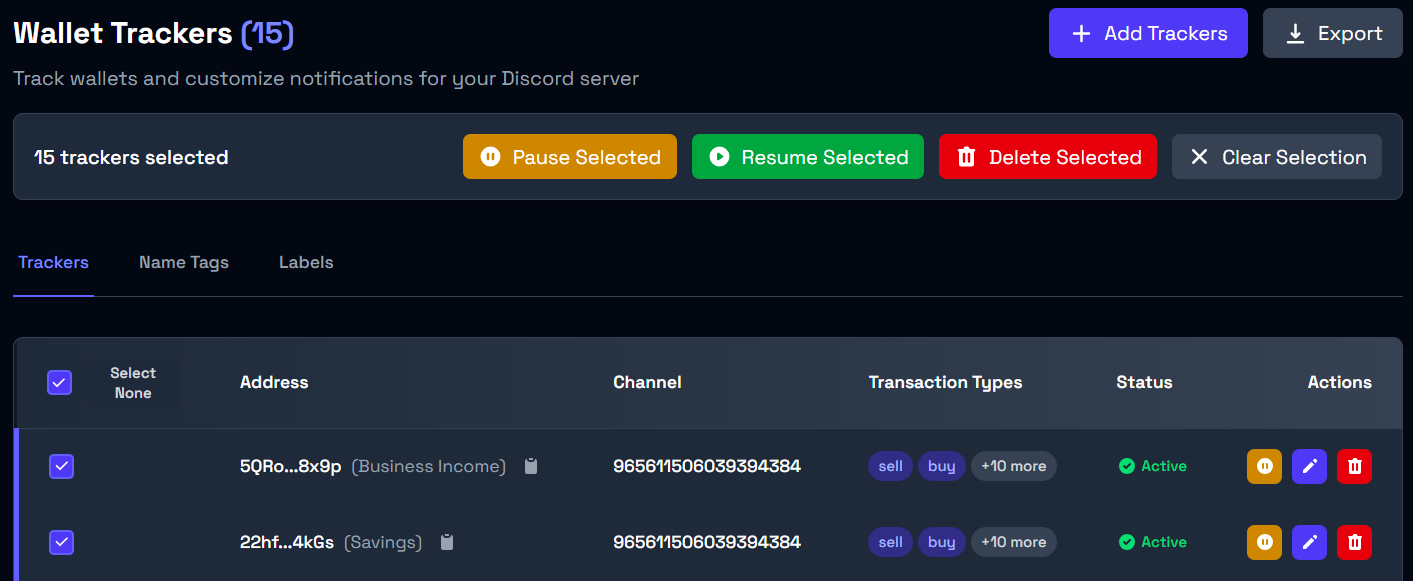
Select multiple trackers using the checkboxes, then use the bulk action buttons:
* **Pause selected** — pause all selected trackers
* **Resume selected** — resume all selected trackers
* **Delete selected** — remove all selected trackers
Use the **Select all** checkbox to quickly select everything.
Bulk operations with multiple trackers selected
## Name Tags Sub-tab
Manage custom names for wallet addresses. See [Nametags & Labels](/discord-bot-features/nametags-and-labels.md) for details.
## Labels Sub-tab
Organize wallets into groups with labels. See [Nametags & Labels](/discord-bot-features/nametags-and-labels.md) for details.