> For the complete documentation index, see [llms.txt](https://docs.solmatebot.com/llms.txt). Markdown versions of documentation pages are available by appending `.md` to page URLs; this page is available as [Markdown](https://docs.solmatebot.com/discord-bot-features/nametags-and-labels.md).
# Nametags & Labels
Organize your tracked wallets with custom names and tags.
When tracking multiple wallets, it helps to give them human-readable names and organize them into groups. Solmate offers two features for this: **nametags** and **labels**.
## Nametags
A nametag is a custom name you assign to a wallet address. Instead of seeing a long address like `7xKX...9pR4` in notifications, you'll see the nametag (e.g., "Team Wallet" or "Treasury").
### Adding nametags
**When adding a tracker:** Use the `nametag` option in `/tracker add` to set a name right away.
**On the dashboard:**
1. Go to [solmatebot.com/manage](https://solmatebot.com/manage) > select your server
2. Click the **Trackers** tab
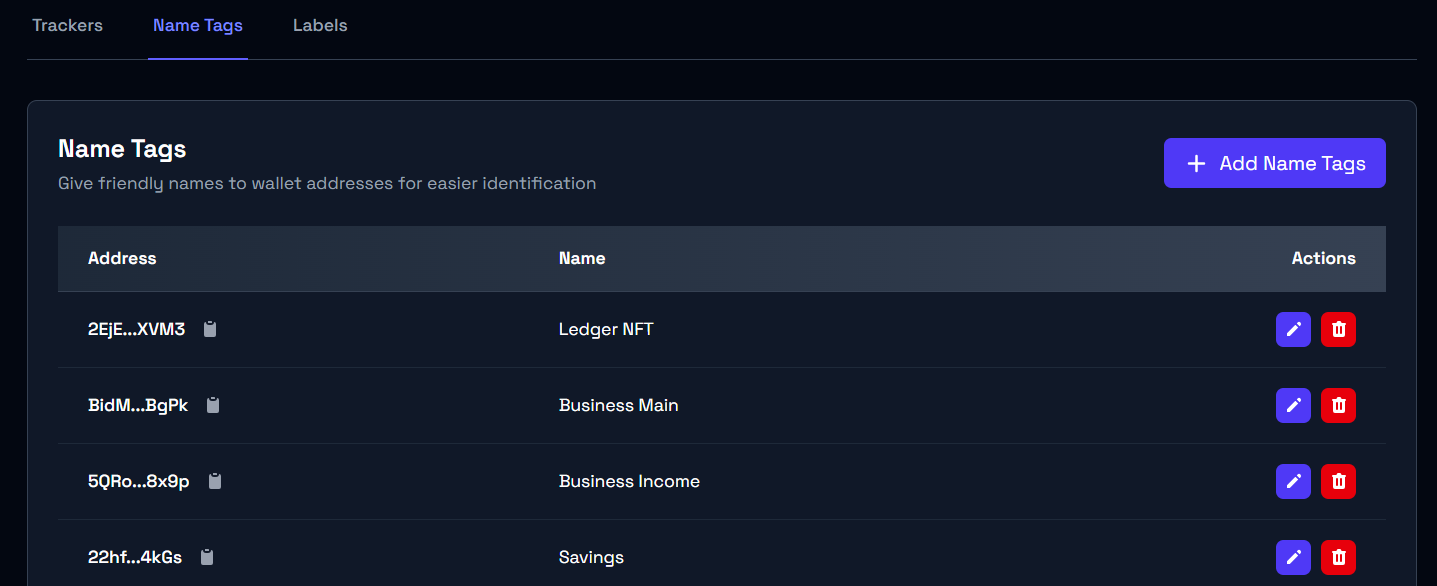
3. Switch to the **Name Tags** sub-tab
4. Click **Add** and enter the wallet address and name
Managing nametags on the dashboard
### Editing and removing nametags
On the dashboard, you can edit or delete nametags at any time from the Name Tags sub-tab.
### Where nametags appear
* Wallet tracker notifications
* Tracker list
* Address lookups
* PNL leaderboards
## Labels
Labels are tags you can attach to tracked wallets for grouping and organization. For example, you might label wallets as "Team", "Influencer", or "Whale".
### Adding labels
**When adding a tracker:** Use the `labels` option in `/tracker add`. You can enter multiple labels separated by commas (e.g., `whale, influencer`).
**On the dashboard:**
1. Go to [solmatebot.com/manage](https://solmatebot.com/manage) > select your server
2. Click the **Trackers** tab
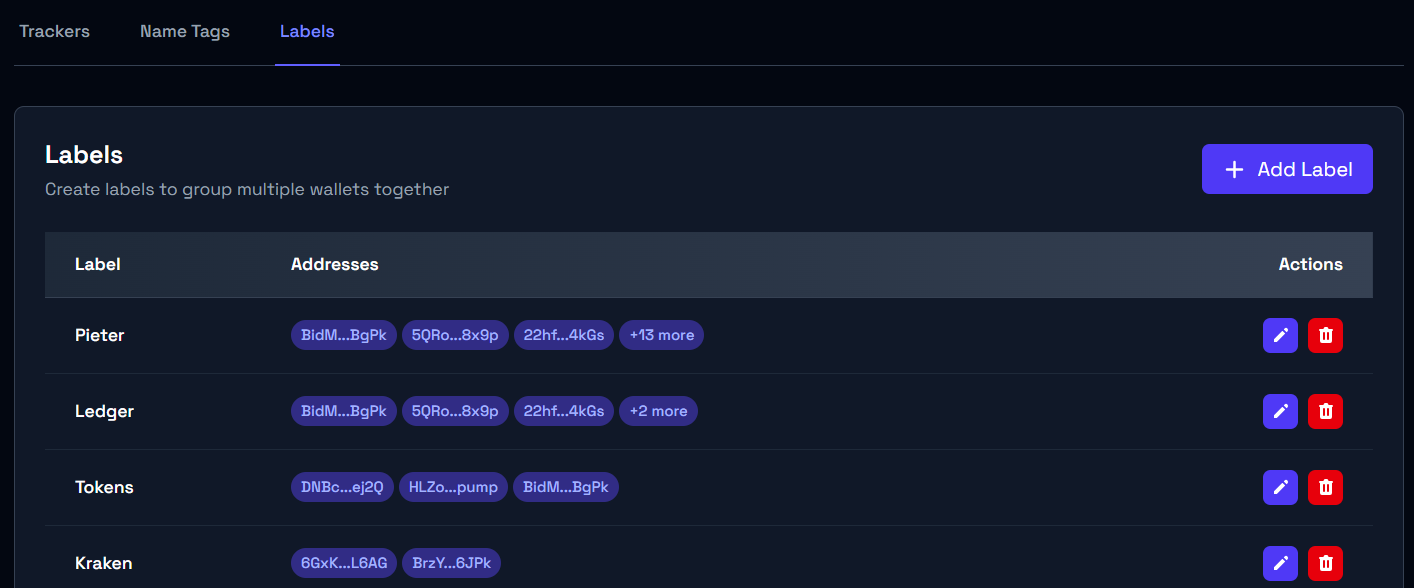
3. Switch to the **Labels** sub-tab
4. Create a new label and assign wallet addresses to it
Managing labels on the dashboard
### Managing labels
On the dashboard, you can:
* Create new labels
* Edit label names
* Add or remove wallets from labels
* Delete labels entirely